Download the Canvas Student App

Loading...

Top Tips For Students

Updated April 10, 2024

  1. Sign in faster with Duke Unlock. After you register a personal device with Duke Unlock, you can skip using your password and second verification step when logging in to Canvas from that device.
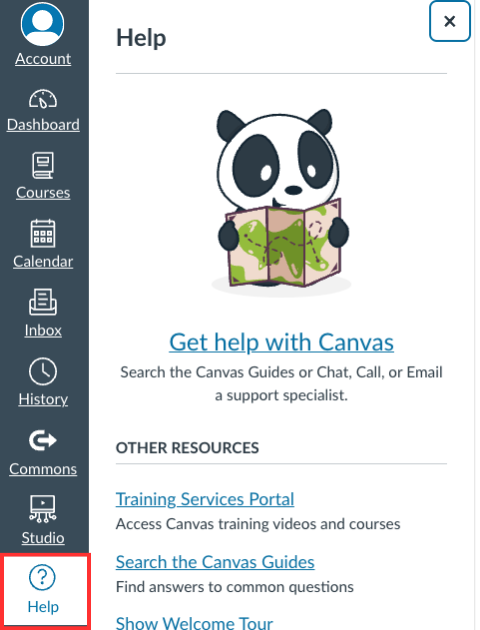
  2. Get help 24/7. You can contact Canvas for support 24/7 via email, phone or chat. To do so, in the Help menu, click "Get Help with Canvas" at the top, then scroll to the bottom of the pop-up window. There you will see the options for direct support. A representative should connect with you within one hour for email tickets and five minutes for phone and chat requests. 
  3. Find the answer in the Student Guide. The Canvas Student Guide has documentation on everything in Canvas, including how to update your profile, manage your notification settingssubmit assignmentstake quizzes, and more.

Why is Duke switching from Sakai to Canvas?

There are a number of benefits of our move to Canvas:

  • Canvas has a formal, centralized support system and an active user community. You will have access to 24/7 Canvas support for any issues and questions you might run into while using Canvas. There is also extensive documentation available to you in the Canvas Student Guide.
  • Canvas is a more intuitive, modern, and accessible LMS. Canvas should be an easier site for both you and your instructors to use.
  • Canvas has associated mobile apps! You will now be able to easily access your course information, to-do lists, and more from your phone:
    • Download the ‘Canvas Student’ app through Google Play or the Apple App Store
    • Open the app, and either click ‘Find my school’ or use the QR code in your Canvas account to login through your phone
    • If using ‘Find my school’, search for ‘Duke University’
    • Use your NetID and password to login

Where can I find Canvas resources?

If you are new to using Canvas, or need a refresher on how to use Canvas, the following links will help you get started:

You can find additional help in Canvas by clicking on the ‘Help’ menu on the bottom left side of the screen and then clicking on ‘Get help with Canvas’ in the new menu that appears (see screenshot to the right). A representative should connect with you within one hour for email tickets and five minutes for phone and chat requests. 

Image
Screenshot of Canvas help menu

What if I am a student at the Medical School or Fuqua?

Before Duke University adopted Canvas, the Medical School and Fuqua each had their own instance of Canvas that they will continue to use at this time. For courses taught at these schools, students should log into the appropriate instance of Canvas: